
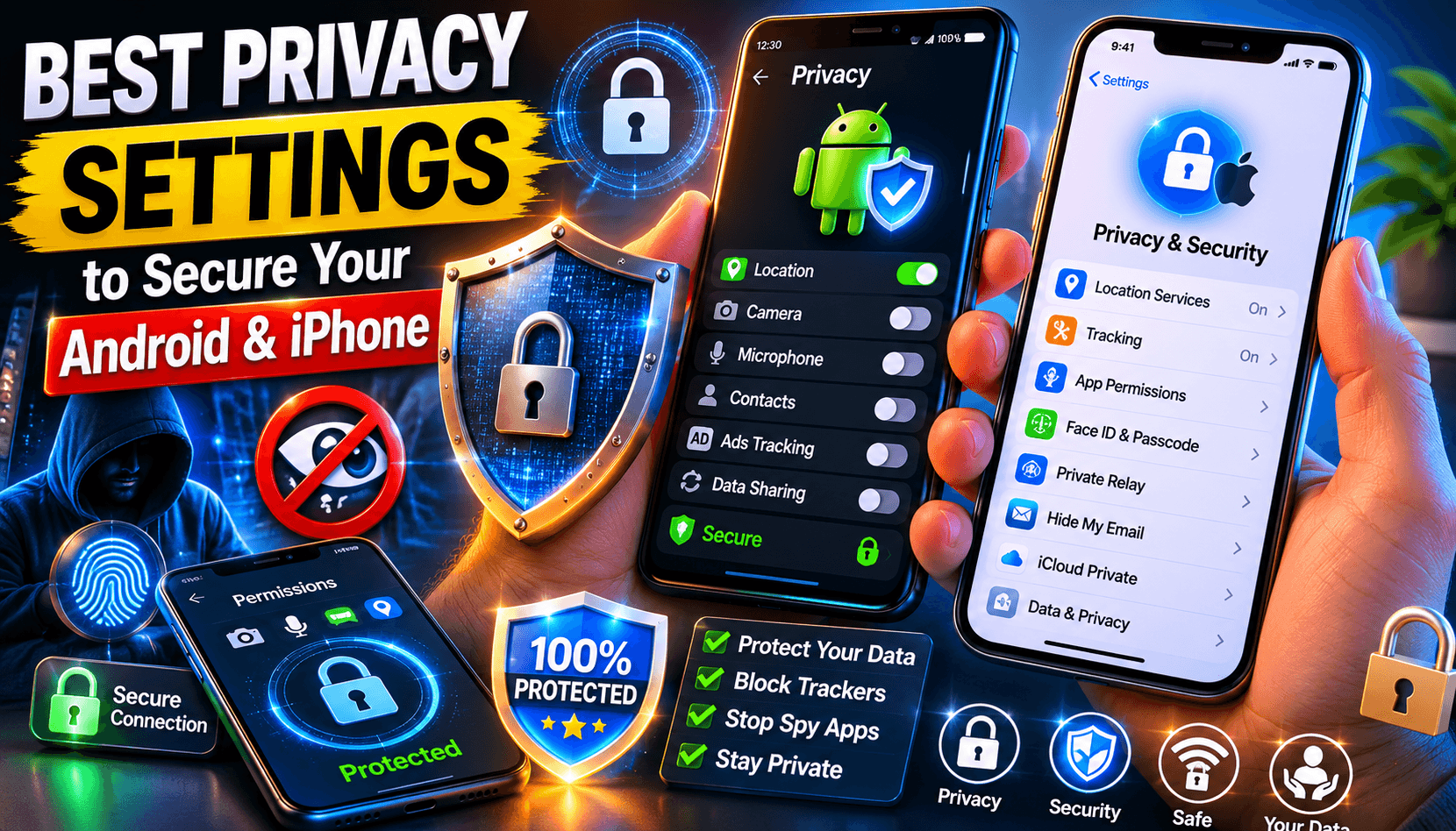
In today’s digital world, smartphones store an incredible amount of personal information. From banking apps and private messages to photos and location history, your device contains data that cybercriminals and advertisers may want to access. Whether you use an Android phone or an iPhone, enabling the Best Privacy Settings for Android and iPhone is one of the most effective ways to safeguard your information and maintain control over your digital life.
This guide explores the most important privacy settings you should activate to improve security, reduce tracking, and protect sensitive data on your smartphone.
Why Mobile Privacy Matters
Many users assume their smartphones are secure by default. While Android and iOS include strong security features, privacy settings often require manual adjustments. Without proper configuration, apps may collect excessive data, track your location, access your contacts, or monitor your online activities.
Implementing the Best Privacy Settings for Android and iPhone helps:
- Protect personal information
- Prevent unauthorized access
- Reduce targeted advertising
- Limit app tracking
- Improve overall cybersecurity
- Enhance online privacy
Best Privacy Settings for Android
Android devices offer extensive privacy controls that allow users to manage app permissions and data sharing.
1. Review App Permissions Regularly
Apps often request access to features they don’t necessarily need.
To review permissions:
Settings → Privacy → Permission Manager
Check which apps have access to:
- Camera
- Microphone
- Contacts
- Photos
- Location
- Calendar
Revoke permissions for apps that don’t require them to function properly.
2. Limit Location Access
Location tracking can reveal your daily habits and movements.
For better privacy:
- Choose “Only While Using the App”
- Disable background location access
- Turn off location for unnecessary apps
This is one of the most important Best Privacy Settings for Android and iPhone because location data is frequently collected by third-party services.
3. Disable Ad Personalization
Google uses certain information to personalize advertisements.
To reduce tracking:
Settings → Privacy → Ads
Enable:
- Delete Advertising ID
- Opt out of personalized advertising
This limits advertisers’ ability to build detailed profiles based on your behavior.
4. Turn Off Nearby Device Permissions
Many Android phones automatically search for nearby devices.
Navigate to:
Settings → Connected Devices
Disable unnecessary Bluetooth and device discovery features when not in use.
5. Enable Find My Device
While primarily a security feature, Find My Device helps protect your data if your phone is lost or stolen.
Activate:
Settings → Security → Find My Device
This allows remote location tracking, locking, and data wiping.
Best Privacy Settings for iPhone
Apple places a strong emphasis on privacy, but users should still review and customize settings.
1. Disable App Tracking
Apple introduced App Tracking Transparency to give users more control.
Go to:
Settings → Privacy & Security → Tracking
Turn off:
Allow Apps to Request to Track
This prevents many apps from tracking your activity across websites and applications.
2. Control Location Services
Many apps request location access even when it’s unnecessary.
Navigate to:
Settings → Privacy & Security → Location Services
Choose:
- Never
- Ask Next Time
- While Using the App
Avoid granting permanent location access unless absolutely necessary.
3. Enable Privacy Protection Features
Modern iPhones include advanced privacy tools such as:
- Hide My Email
- Private Relay
- Mail Privacy Protection
These features help mask your identity and reduce tracking by advertisers and websites.
4. Review Microphone and Camera Access
Some apps may continue to hold access to sensitive hardware.
Check:
Settings → Privacy & Security → Microphone
and
Settings → Privacy & Security → Camera
Disable permissions for apps you no longer use.
5. Manage Photo Library Access
Instead of granting full photo access, choose:
Selected Photos
This allows apps to view only specific images rather than your entire photo library.
Privacy Settings Every Smartphone User Should Enable
Whether you use Android or iPhone, certain privacy practices apply to everyone.
Use Strong Screen Locks
Enable:
- Fingerprint authentication
- Face recognition
- Strong PIN codes
- Complex passwords
Avoid simple codes such as:
- 1234
- 0000
- Birth dates
A strong lock screen is your first line of defense.
Enable Two-Factor Authentication
Two-factor authentication (2FA) adds an additional layer of security to your accounts.
Activate 2FA for:
- Email accounts
- Banking apps
- Social media
- Cloud storage
Even if a password is compromised, attackers will have difficulty accessing your accounts.
Keep Software Updated
Operating system updates often contain important security patches.
Enable automatic updates on both Android and iPhone to protect against newly discovered vulnerabilities.
Use Secure Wi-Fi Connections
Avoid connecting to unknown public Wi-Fi networks.
If public Wi-Fi is necessary:
- Use a trusted VPN
- Avoid financial transactions
- Disable automatic network joining
Secure internet connections help prevent data interception.
Disable Unnecessary Bluetooth Connections
Bluetooth can sometimes be exploited if left active continuously.
Turn Bluetooth off when:
- Not using wireless accessories
- Traveling in crowded public areas
- Connecting to unfamiliar devices
Common Privacy Mistakes to Avoid
Many users unknowingly weaken their privacy through simple mistakes.
Avoid:
- Granting every app full permissions
- Reusing passwords across accounts
- Ignoring software updates
- Clicking suspicious links
- Installing apps from unknown sources
- Sharing excessive personal information online
Following the Best Privacy Settings for Android and iPhone can significantly reduce these risks.
The Future of Mobile Privacy
Privacy concerns continue to grow as smartphones become more integrated into daily life. Technology companies are introducing stronger privacy protections, but users remain responsible for managing their own settings.
Features such as AI-powered privacy monitoring, advanced tracking prevention, encrypted communications, and enhanced permission controls are becoming standard across modern devices. Staying informed and regularly reviewing your settings is essential for maintaining digital security.
Conclusion
Implementing the Best Privacy Settings for Android and iPhone is one of the smartest steps you can take to protect your personal information. By limiting app permissions, controlling location access, disabling tracking features, enabling strong authentication, and keeping your device updated, you can dramatically improve your smartphone’s privacy and security.
In an era where personal data is increasingly valuable, taking a few minutes to optimize your privacy settings can provide long-term protection against tracking, cyber threats, and unauthorized access. Regularly reviewing these settings ensures that your Android or iPhone remains secure while giving you greater control over your digital footprint.